Two days of 1-2-1 meetings between mining companies and investors in Cape Town
The largest dedicated African mining conference connecting mining companies and investors
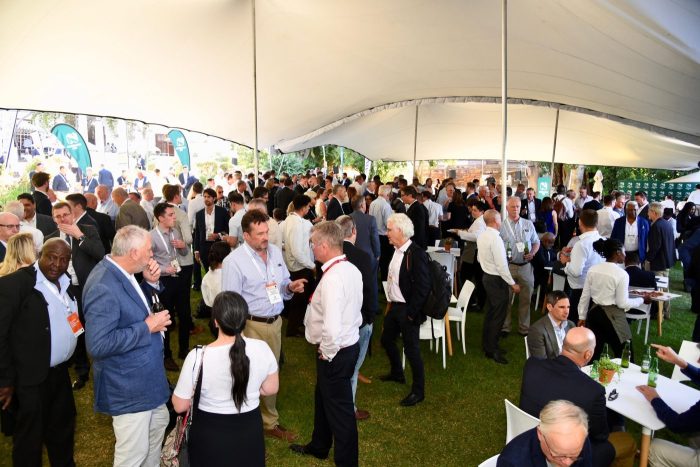
121 Mining Investment Cape Town is the leading African mining conference, connecting mining companies with investors in the heart of Cape Town. Returning on 8–9 February 2027, the event brings together mining companies and investors for exclusive one-to-one meetings in a highly targeted, business-focused environment.
In addition to a curated schedule of pre-booked meetings, the African mining conference features a comprehensive conference programme, delivering expert commentary and the latest market insights on key industry developments across the continent.
From leading analysts sharing in-depth, commodity-specific outlooks to top fund managers discussing the macro trends shaping their investment strategies, attendees gain unparalleled insight into the dynamics influencing African and global metals markets today.
How does 121 Mining Investment work?
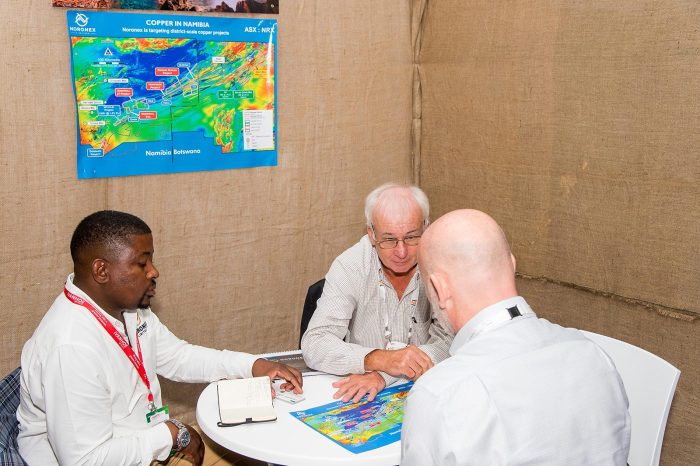
121 Mining Investment Cape Town connects portfolio managers, analysts from institutional funds, private equity groups, and family offices with mining company management teams through private, 1-2-1 in-person meetings.
The event is centred around two days of these exclusive 1-2-1 meetings, carefully matching mining projects with investment capital. In addition, the conference programme offers valuable market intelligence and fresh investment ideas.
Participation is exclusive to investment professionals and senior mining executives.
Why should you attend?
Whether you’re an investor looking for exciting new projects or a mining company aiming to raise capital and make valuable connections, 121 Mining Investment is the premier forum to make it happen.
Discover new opportunities
Explore a wide range of mining projects and find those that align with your investment goals.Connect with the right audience
Only qualified investors and CEOs of mining companies are invited, ensuring you meet the right people.Assess strategic opportunities
Analyse mining projects, uncover value, and make business deals that help diversify your portfolio and mitigate economic risk.Gain expert insights
Learn from informed perspectives on the current and future outlook of the mining sector and global commodities.Mining companies confirmed
The following mining production, development, and exploration companies attended 121 Mining Investment Cape Town on 9 – 10 February 2026.
Qualified investors who would like to arrange 1-2-1 meeting with companies like these should click here for investor registration.





Make 121 Cape Town work harder
Maximise your time in Cape Town by combining targeted 1-2-1 meetings at 121 Mining Investment Cape Town with the scale and influence of Mining Indaba. From focused investor conversations to industry-defining discussions, this crossover helps you build momentum across the week.
Get involved today
Investors
Qualified investors can join us for free and pre-arrange meetings with over 110 mining companies attending the event. Free Investor PassMining companies
Register your interest today, and one of our team members will reach out to discuss how you can gain access to more than 650 qualified investors for 1-2-1 meetings. Mining Company Registration
The Assay is a print and online platform packed with insights from leading fund managers and analysts plus mining company news, profiles and project updates.
Got questions?
121 Mining Investment Cape Town is the largest dedicated mining investment event in South Africa, bringing together mining companies and investors for pre-arranged one-to-one meetings. The event also features a comprehensive programme focused on key trends shaping mining investment across the continent.
The event is attended by CEOs and senior executives from mining companies operating across Africa, alongside institutional investors, fund managers, analysts, and family offices. Participants attend 121 Mining Investment Cape Town to connect with decision-makers and explore investment opportunities in a highly targeted environment.
At 121 Mining Investment Cape Town, meetings are pre-arranged and double opt-in. Both mining companies and investors confirm interest in advance, ensuring each meeting is relevant, efficient, and aligned with shared investment objectives.
In addition to one-to-one meetings, 121 Mining Investment Cape Town hosts a structured conference programme featuring analysts, investors, and industry experts. Sessions cover commodity outlooks, regional developments, and broader market dynamics relevant to African mining investment.
Cape Town is a long-established hub for African mining finance and corporate leadership. Hosting 121 Mining Investment Cape Town here provides direct access to mining executives, capital providers, and insights shaping the African mining sector today.